ThinForms FAQ
Uninstall ThinForms
Removing the ThinForms extension and Java Host, including what to do when AD group policies block the uninstall.
When you initially install ThinForms Chrome Java Host, you are given the option to install the browser extension manually via the Chrome Web Store, or automatically via AD policies. If you have installed ThinForms Chrome/Edge with the AD policy option, some extra steps may be required to remove ThinForms from your browser and your system.
Option AAutomatic uninstall
- Ensure all Oracle Forms applications on your PC are closed, and close all browser windows (Chrome and Edge).
- Run the ThinForms Java Host installer as Administrator, go to tab 3 “Uninstall Product”, and click the Uninstall button.
- Check if step 2 has already removed the ThinForms extension from the browser. If not, remove the ThinForms browser extension via your browser’s extension options.
- Once that is complete, the application should be uninstalled.
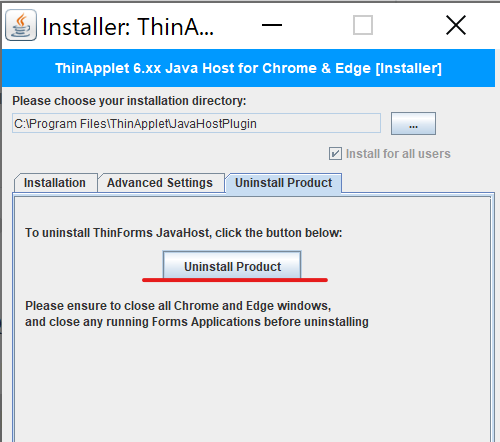
Troubleshooting: if the automatic uninstall is unsuccessful, likely due to AD policy settings or missing admin rights, please try a manual uninstall.
Option BManual uninstall
- Ensure all Oracle Forms applications on your PC are closed, and close all browser windows (Chrome and Edge).
- Kill any running instances of
cfeloader.exeusing the Task Manager. - Delete the folder
C:\Program Files\ThinApplet\JavaHostPlugin. - Remove the ThinForms browser extension via your browser’s extension options.
Note: if you are unable to remove the browser extension because it claims to be “Installed by your administrator/organization”, this means AD group policies are in place that prevent the uninstall.
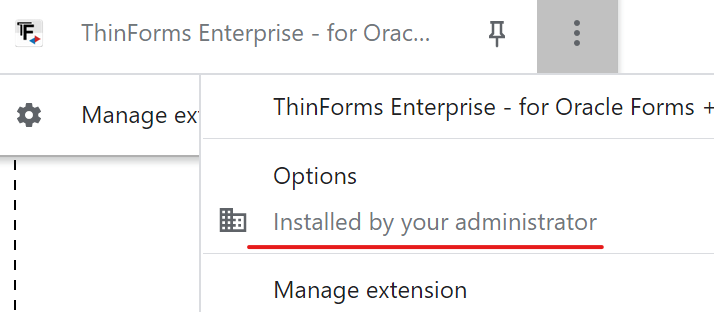
In order to force-uninstall the ThinForms extension in this case, there are some registry keys which need to be removed manually:
Windows Registry Editor Version 5.00

[-HKEY_CURRENT_USER\Software\Policies\Google\Chrome\ExtensionInstallForcelist]
[-HKEY_CURRENT_USER\Software\Policies\Microsoft\Edge\ExtensionInstallForcelist]
[-HKEY_LOCAL_MACHINE\Software\Policies\Google\Chrome\ExtensionInstallForcelist]
[-HKEY_LOCAL_MACHINE\Software\Policies\Microsoft\Edge\ExtensionInstallForcelist]
Alternatively, download the ZIP below. It contains a registry file with the four lines above, which
will remove these entries: unzip it and double-click the .reg file.
Once you have removed these registry entries, manually or via the ZIP/REG file, and closed all browser windows, the uninstall should be complete.
Still having trouble?
If you are still experiencing issues uninstalling the application, please contact our tech team.