ThinForms FAQ
Missing Java Host Application
What to do when the ThinForms extension cannot find the ThinForms Java Host on your system.
If you have installed the ThinForms Chrome/Edge extension, but your ThinForms Java Host application is missing or installed incorrectly, you may find the following error message pop up in your browser when trying to open a Forms application:
![ThinForms Extension Installer page showing: ThinForms Extension [installed], ThinForms Java Host [not installed]](/images/faq/thinforms-missing-javahost-error.png)
Troubleshooting steps
ThinForms requires two components in order to operate correctly:
- The ThinForms Chrome/Edge Extension from the Chrome/Edge extension web store. Note: you already have the extension installed if you see the error message above, as that message is generated by the extension.
- The ThinForms Java Host Application, available for download on our Downloads page (section “Step 2”), which needs to be installed with Administrator rights.
If installed correctly, the following directory and files should be present on your system:
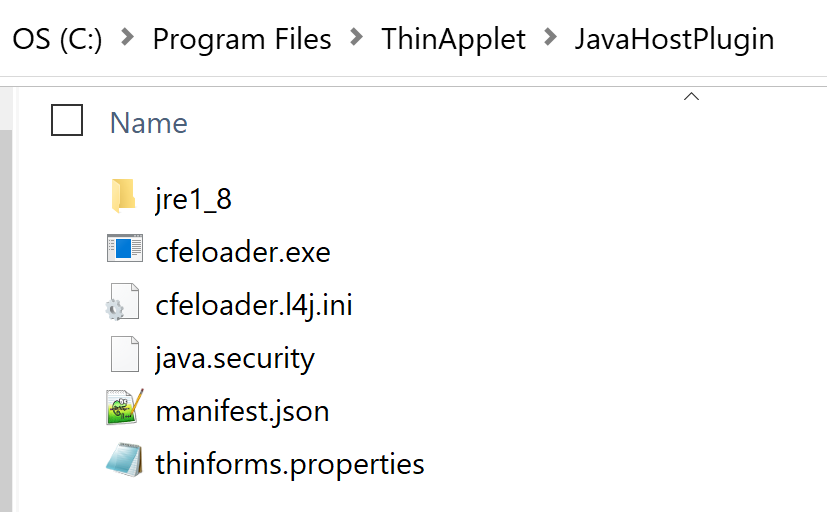
Check the registry keys
The ThinForms Java Host Application, when installed with admin rights, tries to create important registry keys which are mandatory for ThinForms to operate correctly. In some environments, especially restrictive AD policy controlled environments, these keys may not have been created correctly even if the installer has been run as Administrator. Please check that the ThinForms Java Host installer has created the following registry keys:
Windows Registry Editor Version 5.00

[HKEY_LOCAL_MACHINE\SOFTWARE\Google\Chrome\NativeMessagingHosts\com.talkingbyte.chromeformesext]
@="C:\\Program Files\\ThinApplet\\JavaHostPlugin\\manifest.json"

[HKEY_CURRENT_USER\SOFTWARE\Google\Chrome\NativeMessagingHosts\com.talkingbyte.chromeformesext]
@="C:\\Program Files\\ThinApplet\\JavaHostPlugin\\manifest.json"

[HKEY_LOCAL_MACHINE\SOFTWARE\Policies\Google\Chrome\NativeMessagingWhitelist]
"1"="com.talkingbyte.chromeformesext"

[HKEY_CURRENT_USER\SOFTWARE\Policies\Google\Chrome\NativeMessagingWhitelist]
"1"="com.talkingbyte.chromeformesext"

[HKEY_LOCAL_MACHINE\SOFTWARE\Microsoft\Edge\NativeMessagingHosts\com.talkingbyte.chromeformesext]
@="C:\\Program Files\\ThinApplet\\JavaHostPlugin\\manifest.json"

[HKEY_CURRENT_USER\SOFTWARE\Microsoft\Edge\NativeMessagingHosts\com.talkingbyte.chromeformesext]
@="C:\\Program Files\\ThinApplet\\JavaHostPlugin\\manifest.json"

[HKEY_LOCAL_MACHINE\SOFTWARE\Policies\Microsoft\Edge\NativeMessagingWhitelist]
"1"="com.talkingbyte.chromeformesext"

[HKEY_CURRENT_USER\SOFTWARE\Policies\Microsoft\Edge\NativeMessagingWhitelist]
"1"="com.talkingbyte.chromeformesext"
For each type of registry entry, either the HKEY_CURRENT_USER (for current user
installs) or the HKEY_LOCAL_MACHINE (global) entries, or both, have to exist. If you
have installed ThinForms Java Host into a non-standard directory, the paths to the
manifest.json file have to be adjusted.
To check whether your user has the appropriate admin privileges to create these keys, or to create
them manually using the standard values, download the ZIP below. It contains a
.reg file: import it into your Windows registry (for example by double-clicking it)
and the registry keys above will be created.
If during import you receive an error message such as “Not all registry entries could be created”, this means that your user does not have the required Administrator rights, and you should contact your system administrator to run the installer and create the registry keys.
Still stuck?
If these troubleshooting steps did not help you, please contact our tech team.